|
<< Click to Display Table of Contents >> Usage |
  
|
|
<< Click to Display Table of Contents >> Usage |
|
The chapter describes how the Tag Conflict Checker is used.
Depending on the settings (see Tag Conflicts) the Tag Conflict Checker may already open when loading a project in case conflicts do exist.
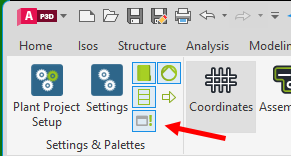
Otherwise you can use the toggle button in the ribbon to open and close the palette.
What is a Tags
A Tag is a unique identifier (within the project) of an object (e.g., Line Group, Line Segment, Symbol, Pipe Run Component, Fastener). Not all object have a Tag property.
Additional Tag properties can be defined with the Assign Tag feature.
What is a Tag Conflict
If a Tag or Additional exists:
1.Tag exists in another object.
2.If a Tag is used in a Data Cache file (created by PlantDataManager).
If the Tags of an object get changed, then the only the new Tags will be considered for the conflict check.
3.If a Tag is used in a NPO*.xml file (created by PlantDataManager).
If a NPO is marked to be deleted, then its Tags will not be considered for the conflict check.
If the Tags of a NPO get changed, then the only the new Tags will be considered for the conflict check.
if a new NPO is created, then its Tags will be considered for the conflict check.
What isn't a Tag Conflict
In Plant 3D you can use the same Tag in multiple objects if they appear in different drawings and they are from the same class. In this case 2 drawing where the same Tag is supposed to be used must be open. If you use the same Tag in the second drawing, you can join the two objects. In the database this is one dataset. This does not constitute a conflict, because it is essentially the same object.
The User Interface
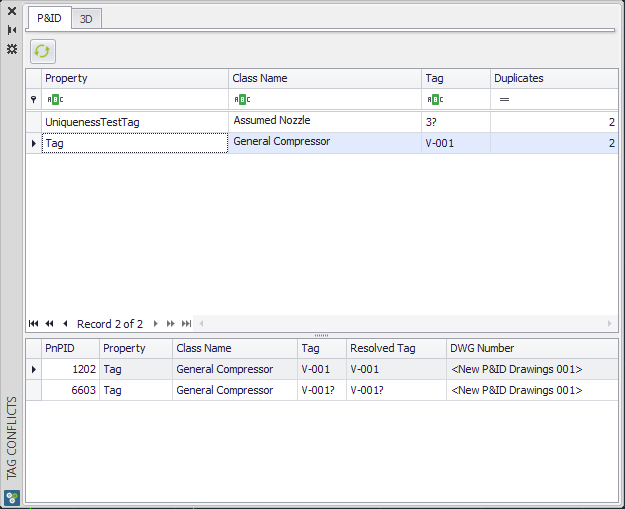
There are 4 elements to the palette.
At the top you can switch between P&ID and 3D data.
The Refresh button can be used to reload the project data. If you also enabled the Reload option in the Tag Conflicts Settings, then the Data Cache and NPO files will also be reloaded.
The table at the top shows the conflicting Tag and how many conflicts are there. If you click on one of the rows the table at the bottom will be updated. The Property column shows the name of the Tag property in case you use additional Tags (see Assign Tag). The Class Name may contains different classes in case the Tag is used in objects with different classes.
The table at the bottom shows in which drawings the Tag is used. You can double click in a row to open the drawing and zoom onto the object.
Use Cases
If you edit Tags in the Properties Palette, Data Manager or the PlantTools PropertiesPalette, then the Tag Conflict Checker gets updated instantly.