|
<< Click to Display Table of Contents >> PlantTools.zip |
  
|
|
<< Click to Display Table of Contents >> PlantTools.zip |
|
The chapter describes the changed workflow for the PlantTools configuration files.
With the introduction of PlantTools 10.x we integrated all PlantTools configuration files into one PlantTools.zip file. The reason for changing the handling of the files are two fold.
1.Improved Speed
When loading a project with PlantDataManager, PlantReporter, or Plant 3D with any PlantTools-Plugin installed each configuration file must be downloaded once and if outdated downloaded again.
2.Reduced API Calls
Using collaboration functions (checking in/out, download and more) are not just one function. In he background the ACC API will be used multiple times for just one file. Autodesk implemented a limit for the number of API calls which can be used in a minute. Therefore, customers had cases where PlantTools and Plant 3D didn't work correctly anymore.
Having now just one zip file improves the speed as well as reduced the API calls.
All PlantTools functions which require adding, deleting, or modifying configuration files will use this PlantTools.zip file. The collection.xml files used (ReportConfiguration.Collection.xml, LinkConfiguration.Collection.xml, SpecDrivenLinkConfiguration.Collection.xml, CalculationConfiguration.Collection.xml, LegendConfiguration.Collection.xml, SelectionListSettings.Collection.xml) are not needed anymore and therefore are not part of the PlantTools.zip file
Some files which are under the ACPlantTools folder, will not be included in the PlantTools.zip file.
•PDMDataCache*.dcf
•NPO_*.xml
•ACProject.db
•ACPChangeLog.dcf
•Any udl, csv, mdb, accdb, sqlite, xls, xlsx files used by PlantLink, PlantExpressTools SelectionList, PlantExpressTools List, PlantProjectSetup/PlantProjectManager SelectionList (for Project and Drawing properties).
•Bolt Catalog (if in the project) and/or the referenced Plant 3D catalog (if in the project).
The PlantTools.zip file is located in your project's ACPlantTools folder and it is used for Collaboration and Non-Collaboration projects.
When you open your project the first time you will be shown this dialog:
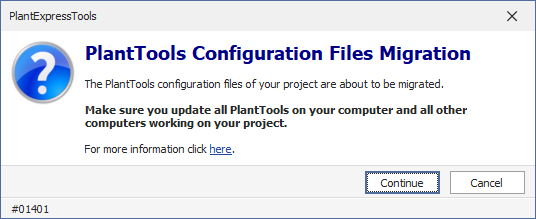
When you click Cancel, nothing will be migrated and you project will be close.
When you click Continue, then all configuration files will be zipped and the zipped files will be remove from your project.
Remark: You cannot continue with the new PlantTools version with your project unless you migrate the PlantTools configuration files.
If you open your project with an older PlantTools version anyway, the old version will recreate some of the files with their default content. However, when you then open the project again with Release 10.0 or higher you will be shown a similar dialog:
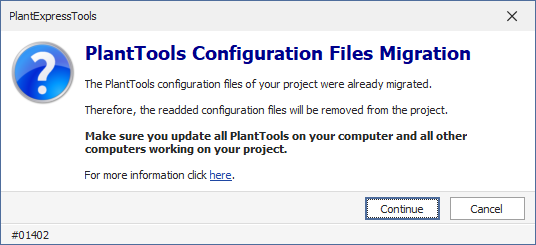
Cancel will do nothing and close your project.
Continue will remove the re-added files. The existing zip file will not be touched and therefore no changes will be done on the configuration files within the zip file.
If you have to undo the migration you can use out utility with the following link
If you open the PlantTools.zip file you will see, that the folder structure and file names hasn't changed. That means you can edit, add, remove the files inside the zip file. When using ACC you first have to check the PlantTools.zip out (with Project Manager or PlantProjectManager), then modify it, and then check it in again. This is of course at your own risk. |
