|
<< Click to Display Table of Contents >> Plant 3D Example |
  
|
|
<< Click to Display Table of Contents >> Plant 3D Example |
|
This chapter describes examples when using PlantBatch in combination with Plant 3D.
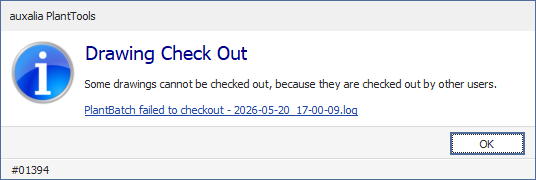
When using Vault or Collaboration projects, PlantBatch will check out the drawings before the script gets executed. And it will also check in the drawings after AutoCAD closes. If some of the drawings cannot be checked out, because they are already checked out by other users you will get a notification. In addition a log file will be created in your project folder with the list of drawings. The messagebox provides a link to this log file allowing you to open it directly.
Remark: Make sure the the AutoCAD variable STARTUP is set to 0 to always open an initial blank drawing. Otherwise a script cannot be executed at all.
 Example: All Projects Type (Regular, Collaboration, Vault)
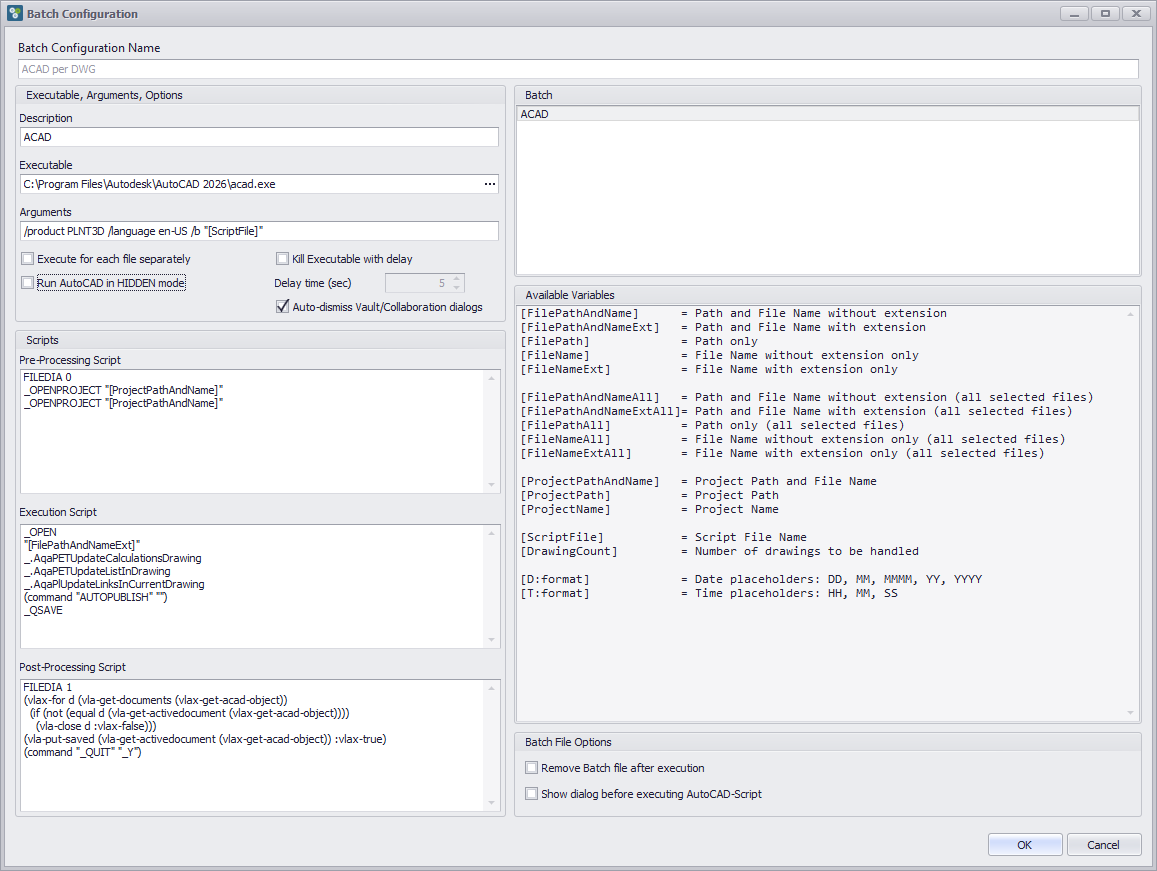
This example works for all project types. There are additional notes for Collaboration and Vault projects further down. Pre-Processing Script In the Pre-Processing Script section you see, that the project needs to be opened twice. It is unclear why this is necessary, because using this command in the AutoCAD Command line only needs to be executed once. Remark: Make sure you use quotation marks arounf the [ProjectPathAndName] variable for cases of spaces within your path or project name. Execution Script This is the main part of the overall script. This section will be executed for each individual drawing. When using OPEN you also need to use quotation marks. In this example you also see, that several PlantTools Update functions are called before the AUTOPUBLISH command is executed. At the end the drawing gets saved. Remark: Do not use the CLOSE command, because then the script file gets interrupted and won't continue. Post-Processing Script In the Post-Processing Script section you see some LISP lines. They are responsible to close all other drawings except the initial Drawing1.dwg. You can copy the lines from this documentation. (vlax-for d (vla-get-documents (vlax-get-acad-object)) (if (not (equal d (vla-get-activedocument (vlax-get-acad-object)))) (vla-close d :vlax-false))) (vla-put-saved (vla-get-activedocument (vlax-get-acad-object)) :vlax-true) The final line will then QUIT the Drawing1 without saving.
|
Example: Collaboration Projects
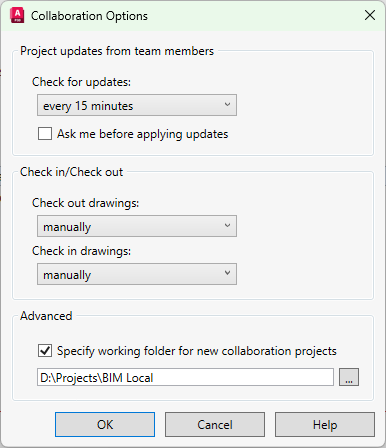
You can use the same script as above, but make sure the Auto-dismiss Vault/Collaboration dialogs box is checked. Because Vault and Collaboration may show dialogs which cannot be avoided and with this checkbox they will be closed automatically. If you want to Run AutoCAD in HIDDEN mode and you check the box, then set the Check in/out behavior in the Collaboration Options dialog to manually. Because otherwise there will be a dialog which ill not be auto-dismissed. PlantBatch makes sure, that the drawings will be checked out and in.
|
You can use the same script as above, but make sure the Auto-dismiss Vault/Collaboration dialogs box is checked. Because Vault and Collaboration may show dialogs which cannot be avoided and with this checkbox they will be closed automatically. If you want to Run AutoCAD in HIDDEN mode and you check the box, the auto-dismiss option will work with Vault without any need to make any setup changes. PlantBatch makes sure, that the drawings will be checked out and in. |
Next Chapter: PlantReporter Example