|
<< Click to Display Table of Contents >> PlantReporter Example |
  
|
|
<< Click to Display Table of Contents >> PlantReporter Example |
|
This chapter describes examples when using PlantBatch in combination with PlantReporter.
PlantReporter can be used with Command line arguments which we make use of in the examples below.
 Example: One Report for a Project
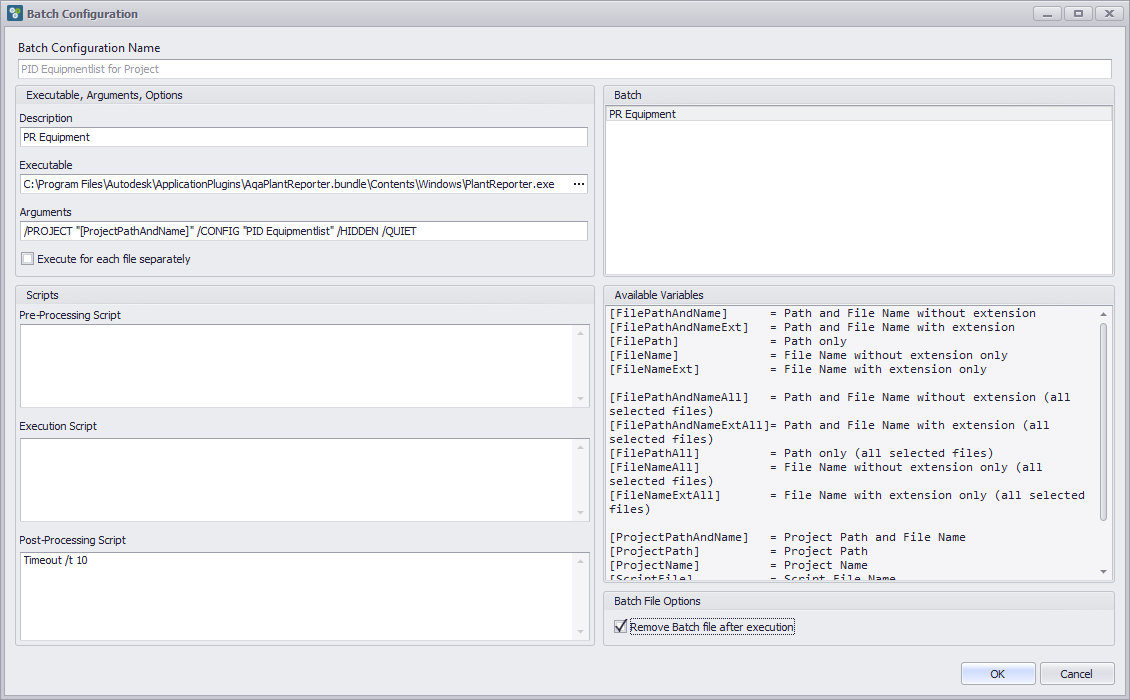
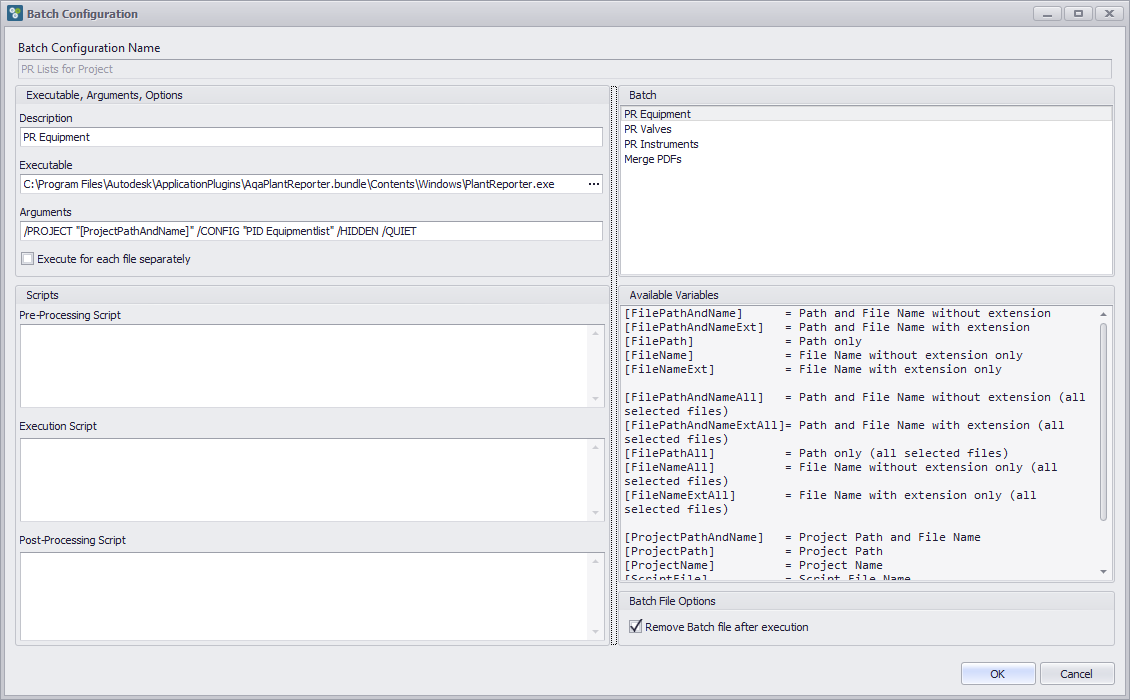
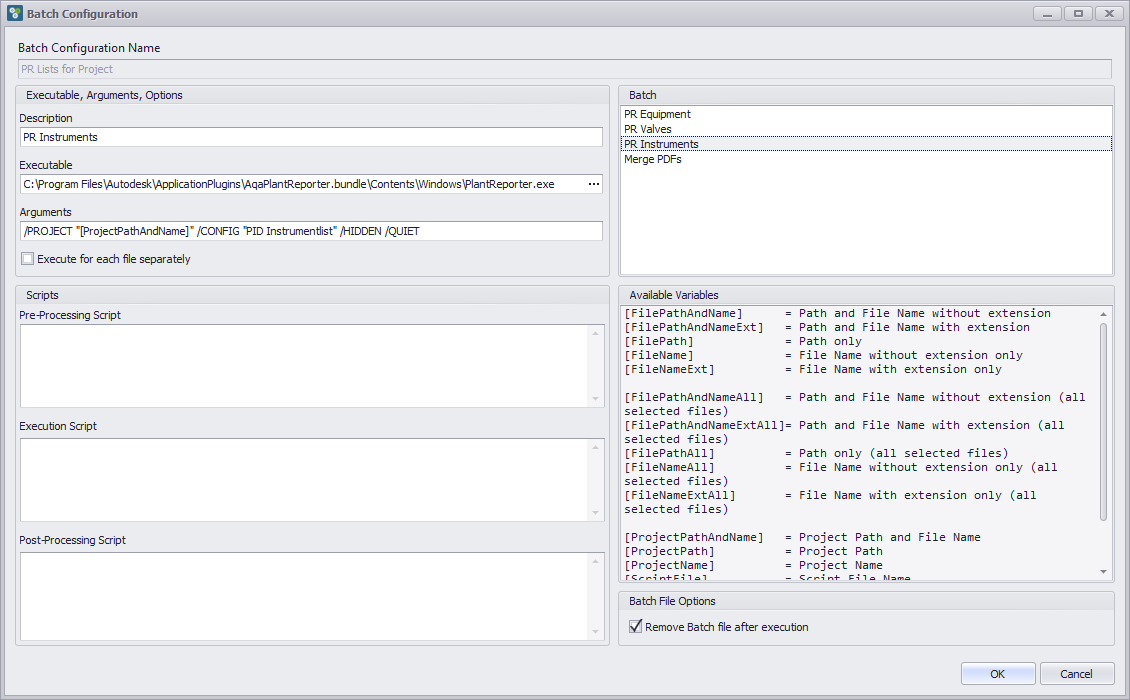
This example shows how to configure a batch where only one report for a project has to be executed. You create a batch with one step (here PR Equipment) which start PlantReporter with the required command line arguments. In this case PlantReporter requires /PROJECT and /CONFIG. /HIDDEN and /QUIET are optional. Without /HIDDEN the PlantReporter's User Interface would appear. /QUIET makes sure, that the final dialog after creating the reports will not appear. Make sure you add " before and after [ProjectPathAndName]. If you want you can add a Timeout as a Post-Processing step. This may be useful, because when the batch file starts PlantReporter, the batch file continues instantly even if the report has not been created. And since there are no additional steps, PlantBatch will show the dialog, that the Batch processing has been completed even though PlantReporter is still working. This is more cosmetic to not get surprised, that the report is apparently already created although PlantReporter is still working. The checkbox Remove Batch file after execution is recommended to not keep unnecessary files in your temp folder.
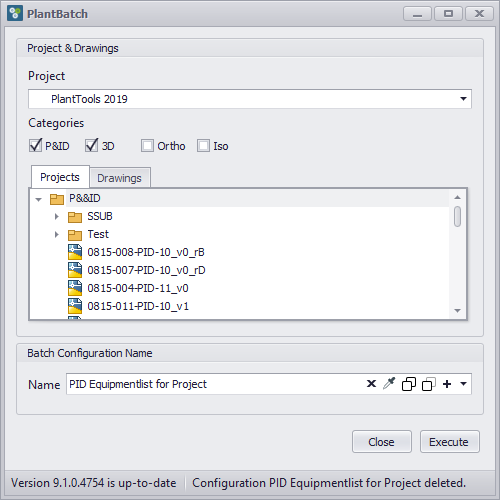
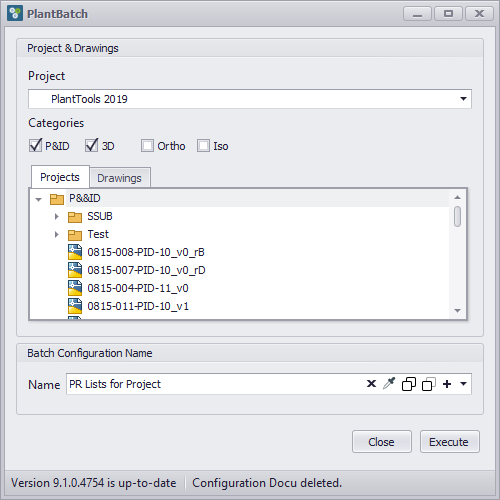
Since this example creates a PID Equipmentlist for the whole project, you don't need to select specific drawings.
The batch file created and executed by PlantBatch looks like this: "C:\Program Files\Autodesk\ApplicationPlugins\AqaPlantReporter.bundle\Contents\Windows\PlantReporter.exe" /PROJECT "D:\Projects\Demo Project\PlantTools 2019\Project.xml" /CONFIG "PID Equipmentlist" /HIDDEN /QUIET Timeout /t 10 |
Example: One Report for multiple Drawings
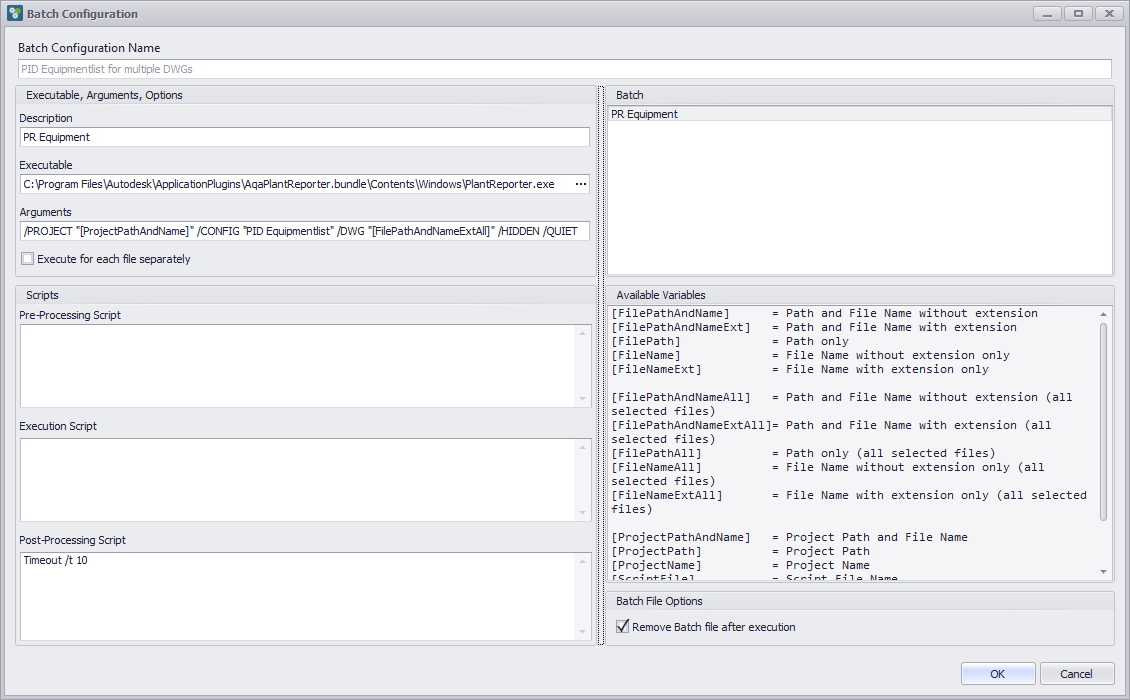
This example shows how to configure a batch where only one report for a multiple selected drawings has to be executed. The difference to the previous example is /DWG "[FilePathAndNameExtAll]". This will write all selected DWGs with their extension as a list in the batch file.
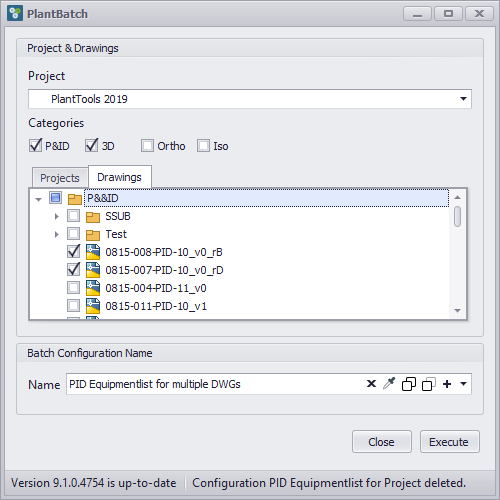
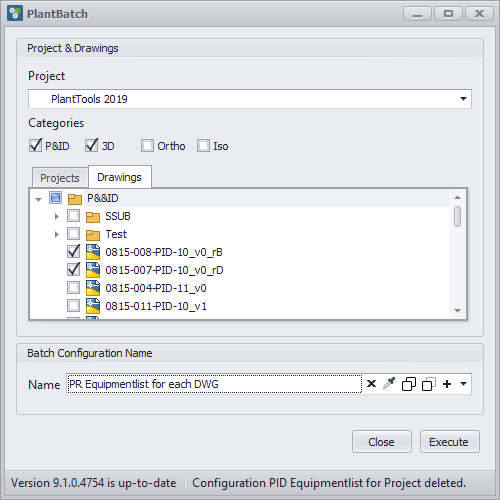
For this example, you select at least one DWG.
The batch file created and executed by PlantBatch looks like this: "C:\Program Files\Autodesk\ApplicationPlugins\AqaPlantReporter.bundle\Contents\Windows\PlantReporter.exe" /PROJECT "D:\Projects\Demo Project\PlantTools 2019\Project.xml" /CONFIG "PID Equipmentlist" /DWG "D:\Projects\Demo Project\PlantTools 2019\PID DWG\0815-008-PID-10_v0_rB.dwg,D:\Projects\Demo Project\PlantTools 2019\PID DWG\0815-007-PID-10_v0_rD.dwg" /HIDDEN /QUIET Timeout /t 10 |
Example: One Report for each Drawing separately
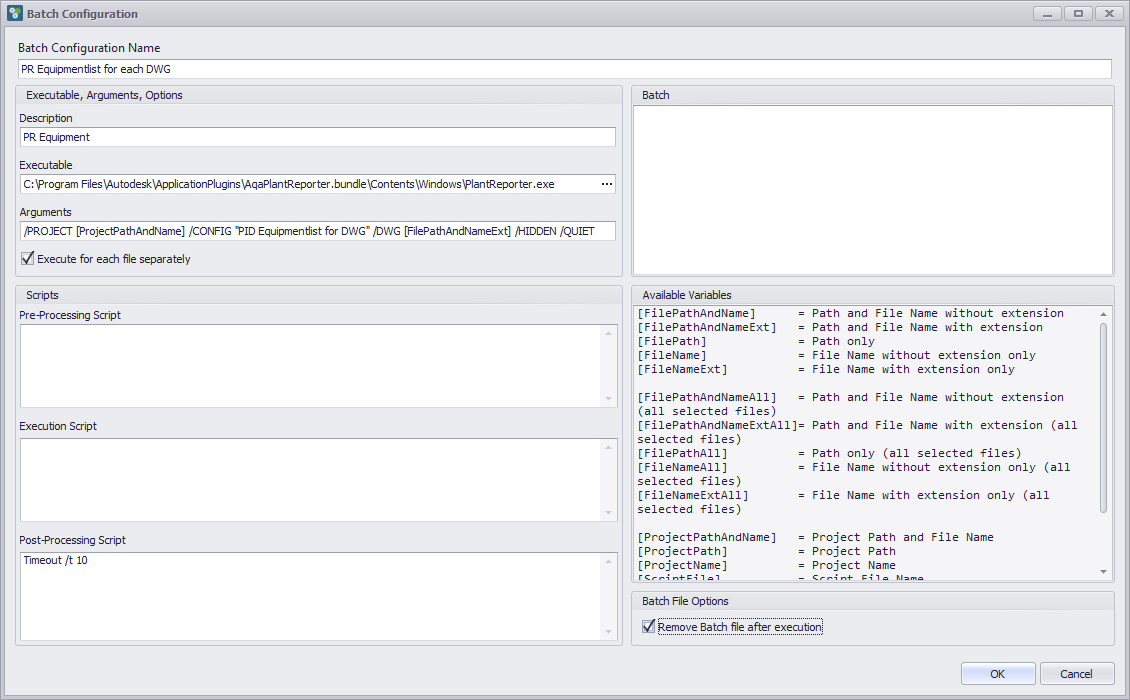
This example shows how to configure a batch where only one report for each selected drawing have to be executed. The difference to the previous example is /DWG "[FilePathAndNameExt]". This will write only the name of one selected DWGs with their extension as a list in the batch file. This example also uses a different report configuration for /CONFIG which creates a report file for a single DWG. Since we want a report for each DWG separately, you have to enable Execute for each file separately.
For this example, you select at least one DWG.
The batch file created and executed by PlantBatch looks like this: "C:\Program Files\Autodesk\ApplicationPlugins\AqaPlantReporter.bundle\Contents\Windows\PlantReporter.exe" /PROJECT "D:\Projects\Demo Project\PlantTools 2019\Project.xml" /CONFIG "PID Equipmentlist for DWG" /DWG "D:\Projects\Demo Project\PlantTools 2019\PID DWG\0815-008-PID-10_v0_rB.dwg" /HIDDEN /QUIET "C:\Program Files\Autodesk\ApplicationPlugins\AqaPlantReporter.bundle\Contents\Windows\PlantReporter.exe" /PROJECT "D:\Projects\Demo Project\PlantTools 2019\Project.xml" /CONFIG "PID Equipmentlist for DWG" /DWG "D:\Projects\Demo Project\PlantTools 2019\PID DWG\0815-007-PID-10_v0_rD.dwg" /HIDDEN /QUIET Timeout /t 10 |
Example: Multiple Reports for a Project
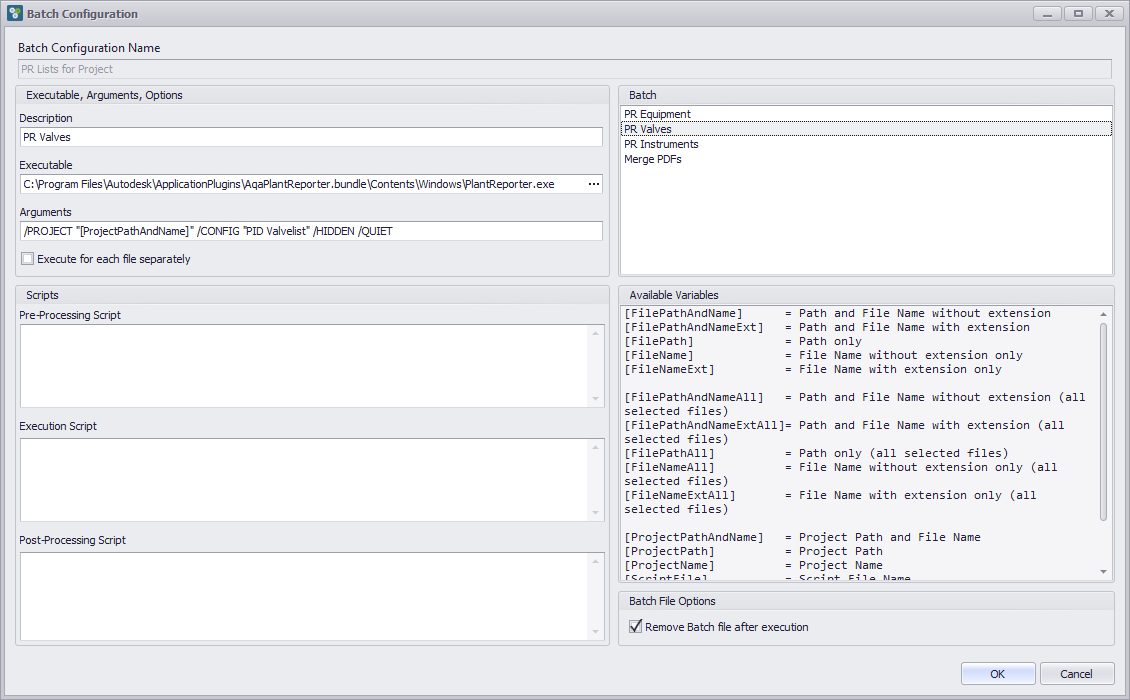
This example shows how to configure a batch where multiple reports for a project have to be executed. In this case you add multiple steps for the various reports you want to create.
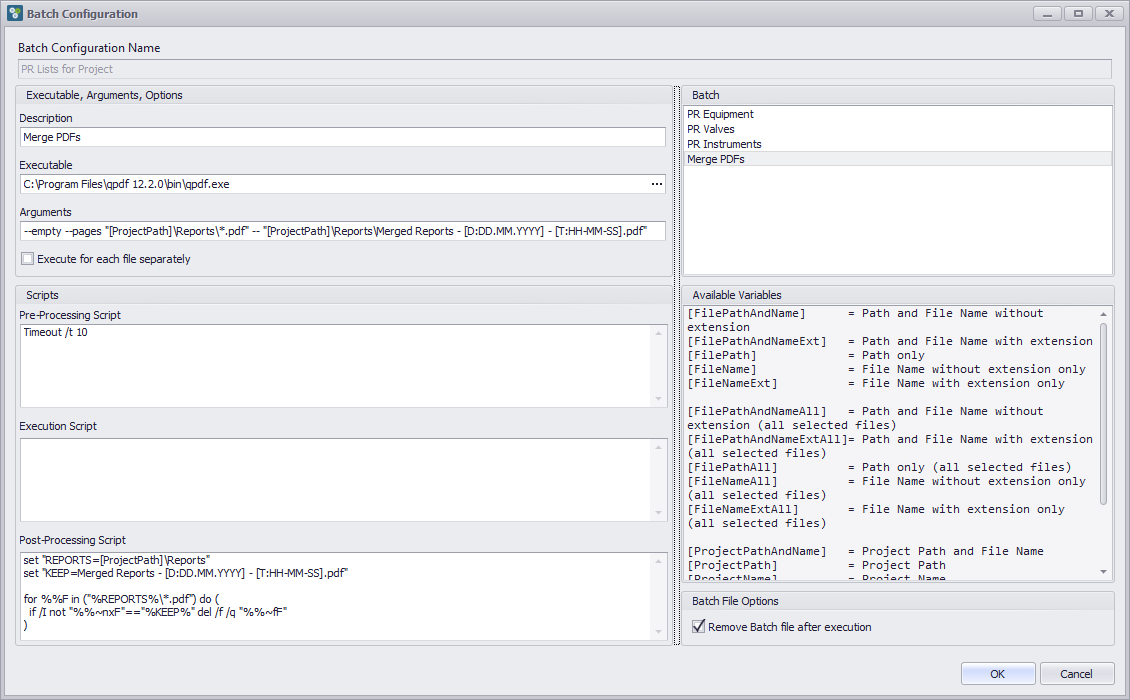
In case you want to merge the single PDFs into one PDF, you can use different tools. This example shows the use of QPDF.exe. The Arguments contain: [ProjectPath]\Reports\*.pdf will collect all PDFs from the project's Reports folder. [ProjectPath]\Reports\Merged Reports - [D:DD.MM.YYYY] - [T:HH-MM-SS].pdf is the resulting merged PDF. Since QPDF should get started only when all 3 reports will have been created, you need to add a timeout. Otherwise QPDF start merging without any existing PDFs. The expression in Post-Processing Script removed all single PDFs after QPDF is done. It only keeps the merged PDF.
No need to select any drawings.
The batch file created and executed by PlantBatch looks like this: "C:\Program Files\Autodesk\ApplicationPlugins\AqaPlantReporter.bundle\Contents\Windows\PlantReporter.exe" /PROJECT "D:\Projects\Demo Project\PlantTools 2019\Project.xml" /CONFIG "PID Equipmentlist" /HIDDEN /QUIET "C:\Program Files\Autodesk\ApplicationPlugins\AqaPlantReporter.bundle\Contents\Windows\PlantReporter.exe" /PROJECT "D:\Projects\Demo Project\PlantTools 2019\Project.xml" /CONFIG "PID Valvelist" /HIDDEN /QUIET "C:\Program Files\Autodesk\ApplicationPlugins\AqaPlantReporter.bundle\Contents\Windows\PlantReporter.exe" /PROJECT "D:\Projects\Demo Project\PlantTools 2019\Project.xml" /CONFIG "PID Instrumentlist" /HIDDEN /QUIET Timeout /t 10 "C:\Program Files\qpdf 12.2.0\bin\qpdf.exe" --empty --pages "D:\Projects\Demo Project\PlantTools 2019\Reports\*.pdf" -- "D:\Projects\Demo Project\PlantTools 2019\Reports\Merged Reports - 29.12.2025 - 14-37-38.pdf" set "REPORTS=D:\Projects\Demo Project\PlantTools 2019\Reports" set "KEEP=Merged Reports - 29.12.2025 - 14-37-38.pdf" for %%F in ("%REPORTS%\*.pdf") do ( if /I not "%%~nxF"=="%KEEP%" del /f /q "%%~fF" ) |
Of course, you can configure a batch where multiple reports for multiple selected drawings have to be executed.
Next Chapter: Command Line