|
<< Click to Display Table of Contents >> Main Dialog |
  
|
|
<< Click to Display Table of Contents >> Main Dialog |
|
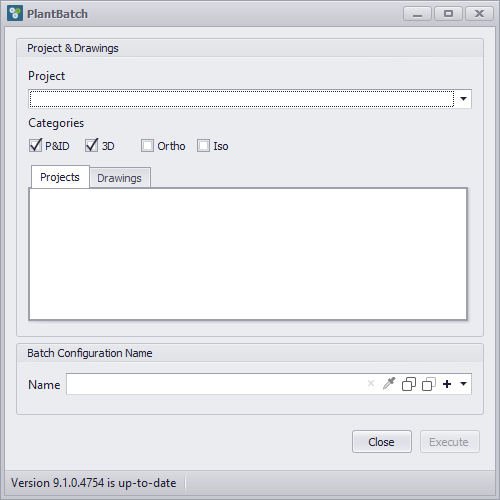
The chapter describes the Main dialog when starting PlantBatch.
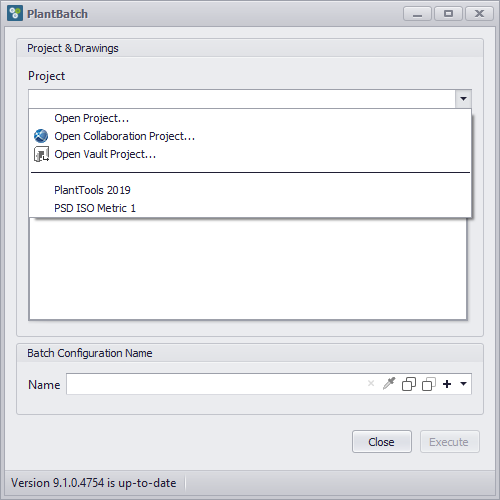
After starting PlantBatch you typically start with the selection of the project.
You can open projects from the Most Recently Used list or select normal, collaboration, or Vault project which are not in your list.
|
 Categories and Drawing selection
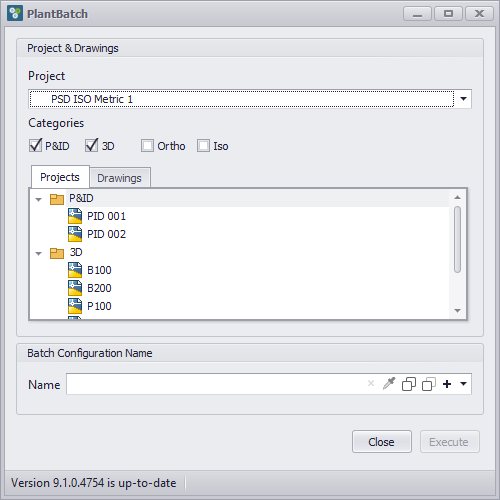
After the project got opened you will see all folders and drawings from the selected Categories. By default P&ID and 3D are checked.
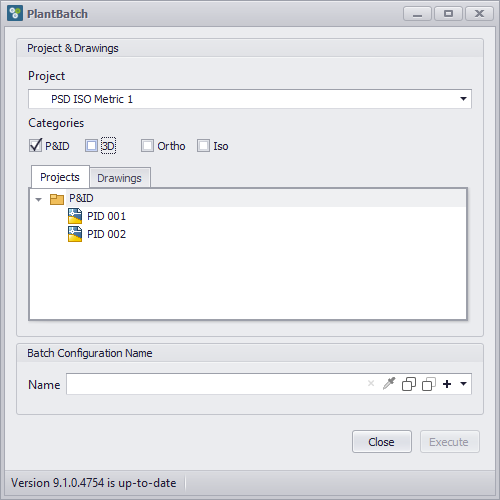
If you check or uncheck Categories, the drawing tree will be updated.
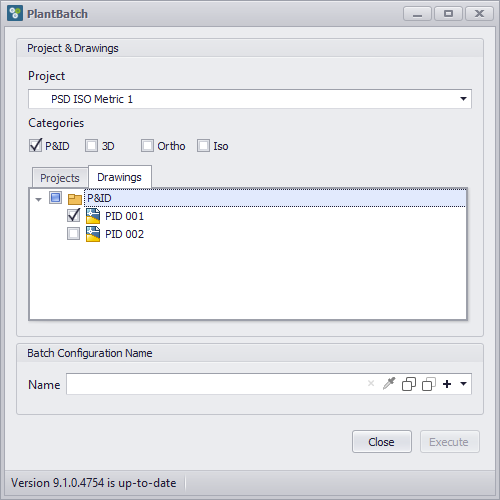
If you switch over to the Drawings tab, you can select individual folders and drawings in case you want to execute the batch process one specific drawings and not the whole project.
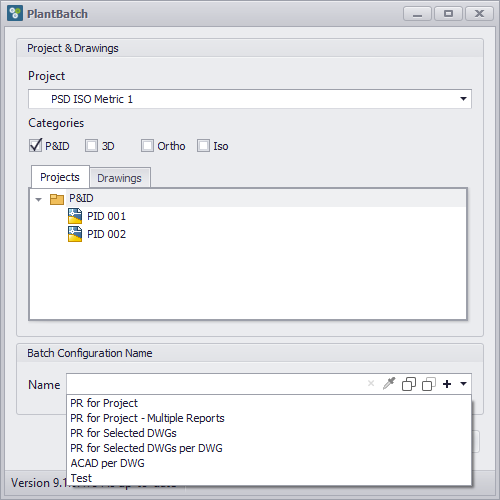
Next you can select one of your existing Batch Configurations from the list. Of course, the list is empty at the beginning.
|
Create New Batch Configuration
If no list exists or you want to create a new Configuration, you click on the The creation of a new Batch Configuration is covered under Batch Configuration Dialog.
|
If you selected an existing Batch Configuration, the other buttons can be used as well.
If you click the
|
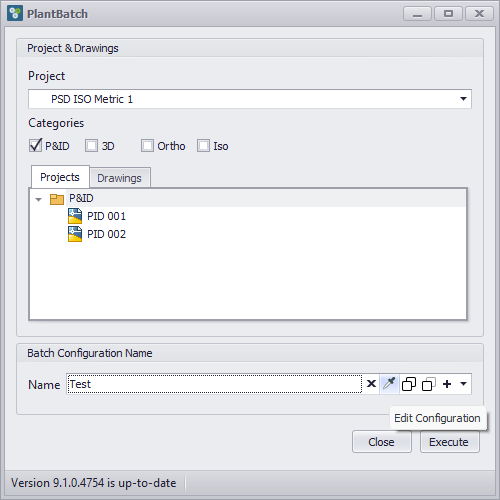
If you click on the The editing a Batch Configuration is covered under Batch Configuration Dialog.
|
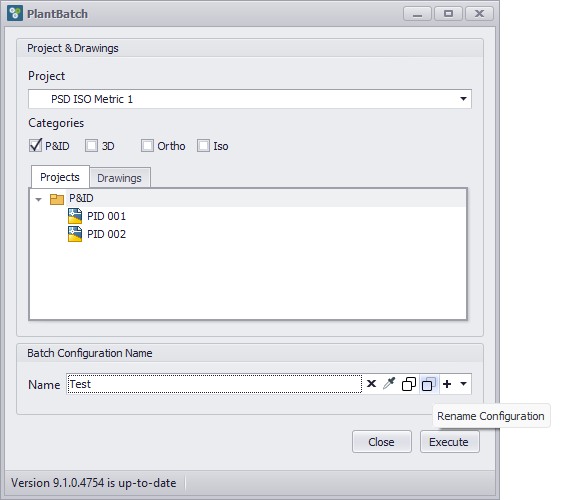
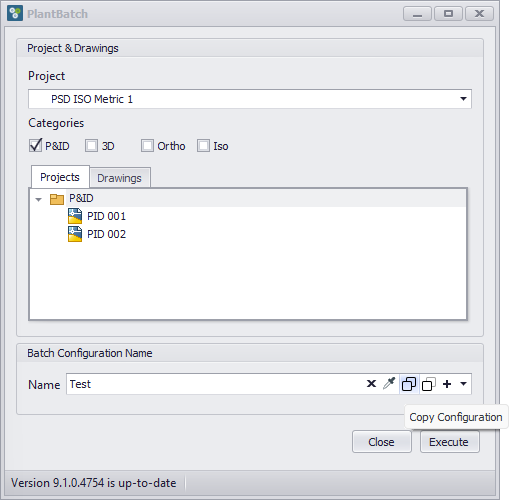
If you click on the
You will notice, that the buttons will change as well.
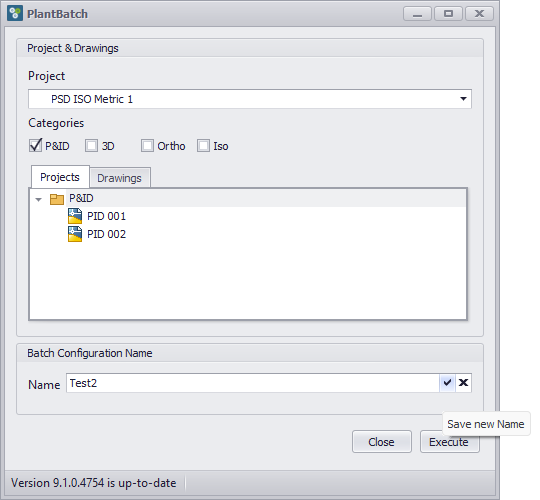
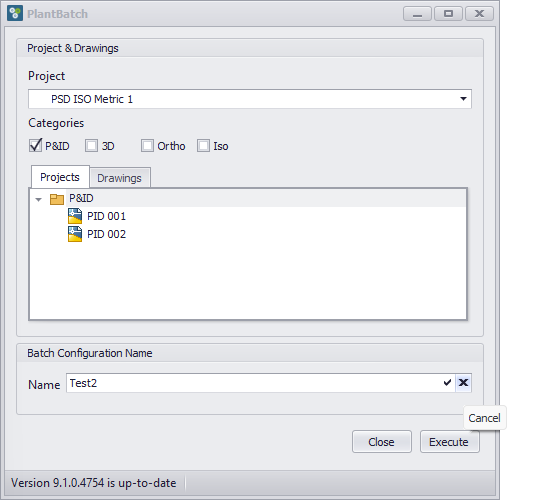
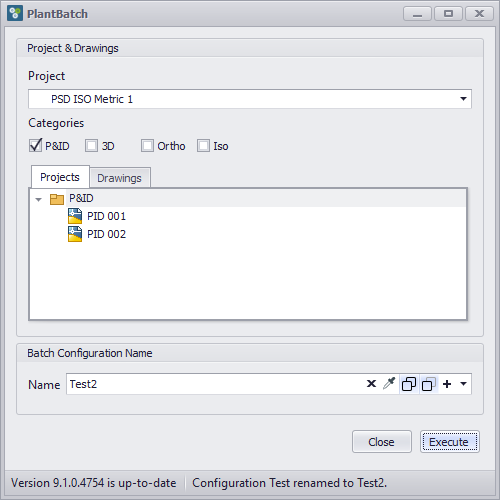
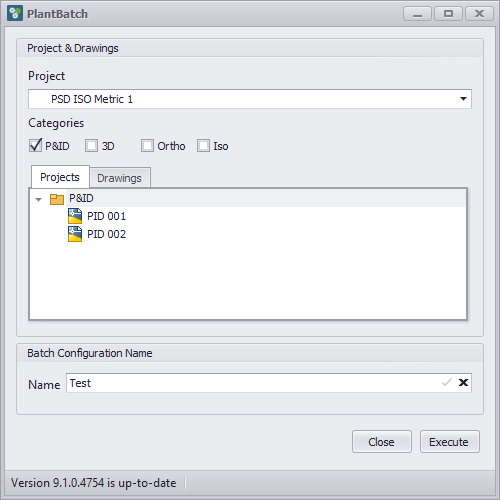
If you change or type in a new Batch Configuration name, you can click on the
If you click the
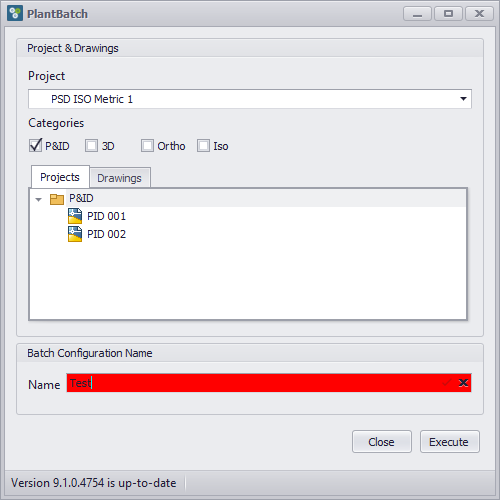
If you type in a Batch Configuration Name which already exists, the background color will change to red and the
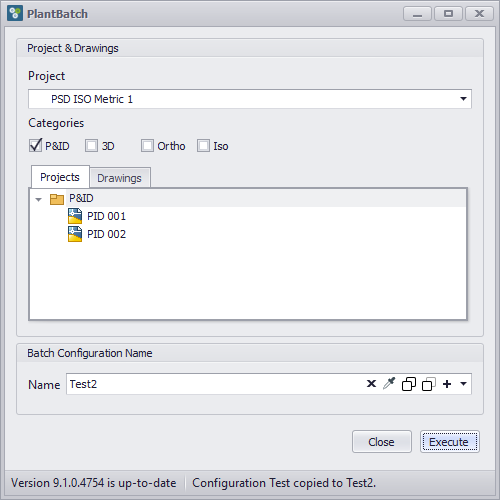
If you have clicked the
|
If you click on the
You will notice, that the buttons will change as well. If you change or type in a new Batch Configuration name, you can click on the
If you click the
If you type in a Batch Configuration Name which already exists, the background color will change to red and the
If you have clicked the
|
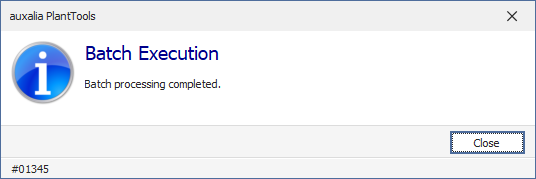
If you have selected a Project and Batch Configuration Name (Category and Drawing selection may also be required depending on the selected Batch Configuration Name), you click on Execute to have the Batch Configuration being processed. If everything runs smoothly, you get a final confirmation dialog.
After the batch has been processed PlantBatch will stay open in case you want to run another Batch. This dialog can be suppress in the Settings. |
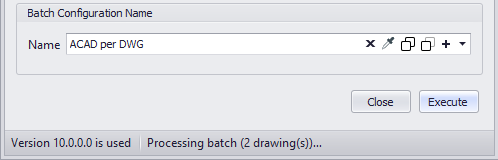
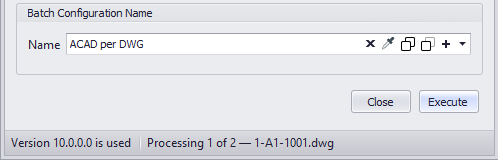
If a batch using acad.exe is executed you see the following message at the beginning:
If you also want to see which drawings is currently processed you need to adapt your script (see Implementing Counter).
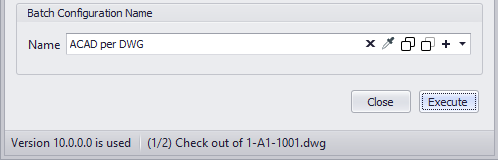
When using Vault or Collaboration projects you will also see, which drawing is currently checked out.
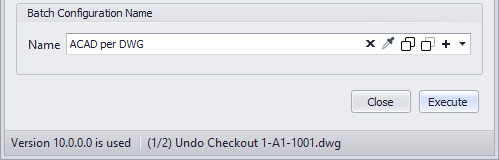
And when the script has been executed you will also see, which drawing is currently checked out.
|
Next Chapter: Batch Configuration Dialog
 button.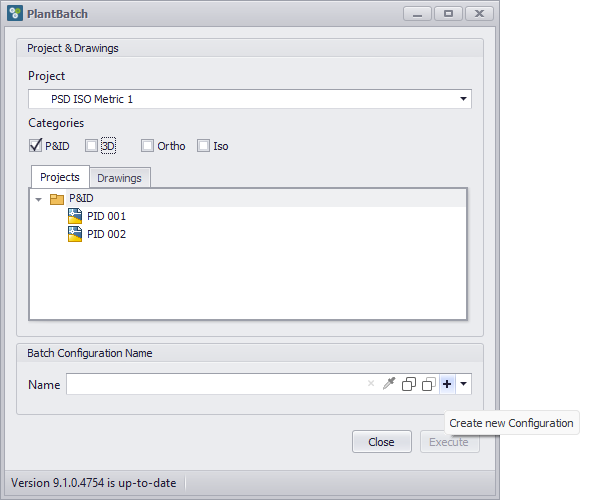
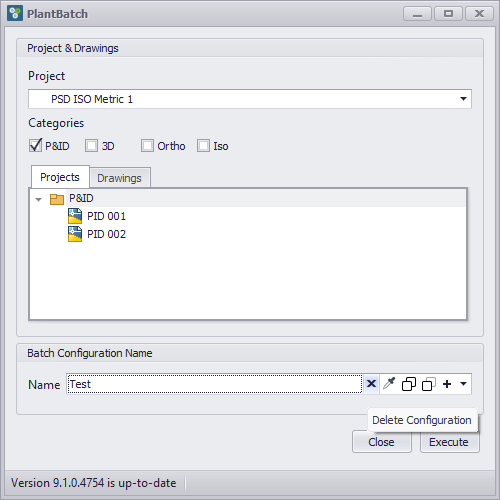
 button you will see a text in the Status bar, that the configuration was deleted.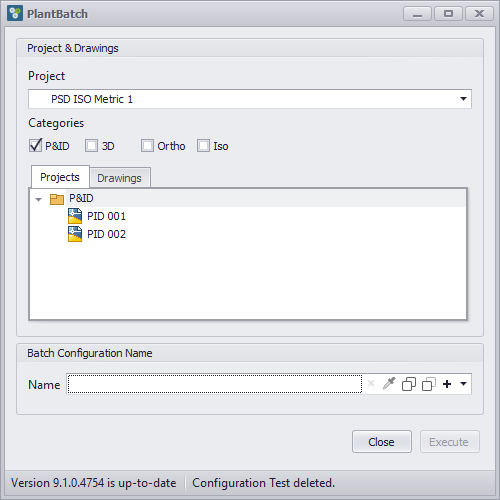


 button to save the Batch Configuration under the new name.